WinTV 10 Overview
WinTV10 Main Window
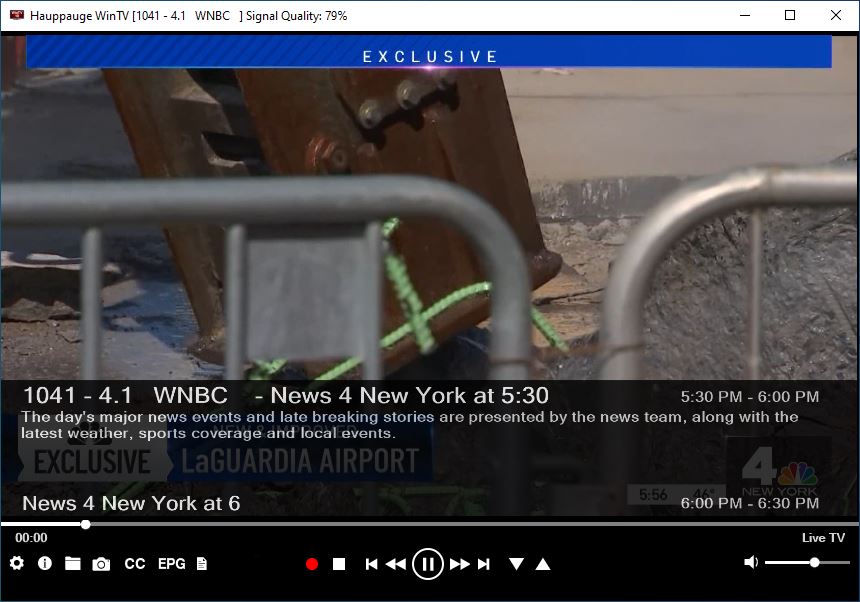
Fundamental Operation
The majority of options can be selected by clicking on the left-hand mouse button. Double-click the left-hand mouse button inside the TV window to change window mode (normal view, TV window only, full screen). Click the right-hand mouse button inside the TV window to open the context Menu. Nearly all functions can be accessed using the keyboard.
Control Buttons
WinTV Settings  Clicking this button will open the WinTV Settings dialog.
On-Screen Display  Clicking this button will display channel information.
Open File for Playback  Click this button to open a previously recorded file for playback.
Snapshot  Click the Snapshot button to save a still image of the currently displayed TV/video.
Start Live TV  Click the TV button to watch Live TV.
Closed Caption  Click to toggle closed caption on or off.
TV Guide  Click to open the TV Guide Menu (Only available for ATSC signals in North America)
Context Menu  Click to open the open the Menu
Start Recording  Starts recording the currently watched channel.
Terminate Recording / Exit Live TV  Click this button to exit a recording, or to exit Live TV mode.
Pause Live TV / Change Playback Position  The big button in the middle pauses Live TV. Click the same button again to continue Live TV. The other buttons do: rewind back 60 seconds, rewind back 10 seconds, skip forward 30 seconds, and skip forward 60 seconds.
Change Channel 
 Click the Channel Up or Channel Down button to change channel.
Mute Audio  This button allows you to turn the sound on or off.
Change Audio Volume  Use this slider bar to change the audio volume.
Pause Buffer Indicator  The white bar below the TV window shows how much the pause buffer is filled with content. The bar grows with time. You can click your mouse button on the white bar to directly jump to a certain position in the pause buffer. The timer will show how far back the video is from Live TV.
Minimize Application Window, Enter Full Screen Mode, Exit Application

-
Click on the minimize button to minimize the WinTV application to the task bar. (Click on the WinTV icon in the task bar to maximize.)
-
Click the maximize button to watch the TV in full screen. To return to windowed mode, double click the left hand mouse button or press the <Esc> key.
-
Click the X button to close the WinTV application.
Resize Application Window
To set the WinTV window size, hold down the left mouse button when it's over the lower right corner of the WinTV window, drag it to the preferred size, and then release the mouse button. You can set different sizes for the normal view and No-Title mode.