Context Menu
Context Menu
To bring up the Context Menu Options, click your right mouse button inside the TV window.
You can also click the context menu button  at the bottom of the WinTV main window.

The following Context Menu options are available:
Option "Open/Edit File"
Click to open "recorded video files" directory to playback a file.
Option "Live TV"
Click to start Live TV.
Option "Find Channel"
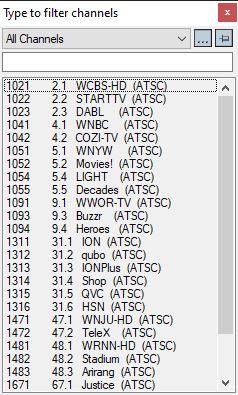
Shows the channel list. Click on a channel entry to select this channel for watching. To filter the channel list, you can type in a channel name (or a part of the name).
The button with three dots  opens the dialog to manage your favorites.
Click on the Pin-Button  to permanently show the channel list.
The channel list will also be displayed if you enter any character (a - z) in live TV mode.
Option "Picture in Picture
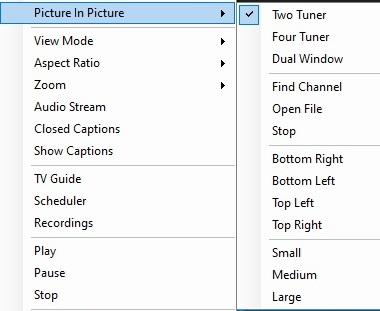 <
<
Picture in Picture is only available on products that have multiple tuners.
Option "View Mode"
The sub options Normal, No Title and Full Screen are available. In the Normal view all control elements and buttons are visible. In the No Title view only the TV image is shown. In the Full Screen view the TV image fills the whole screen. You can also switch between these views by double clicking inside the TV window, or by pressing ctrl W. Position and size of the application window for the Normal and TV window only views are saved separately.
Option "Aspect Ratio"
Selecting Auto will maintain the correct aspect ratio (4:3 or 16:9) of the TV image (recommended). Selecting Fill will make the TV image always fill out the complete video window, regardless of the dimension of the application window.
Option "Zoom"
Use this feature to "zoom" the live video a small percentage to eliminate unwanted lines at the very top or bottom of the Live TV image.
Option "Audio Stream"
If the current TV broadcast offers more than one audio language, you can select the language here.
Option "Closed Captions"
Choose closed caption or second language subtitles if available from TV broadcast.
Option "Show Captions"
Turn on and off close caption on the tv screen.
Option "TV Guide"
Opens the TV Guide menu
Option "Scheduler"
The Scheduler allows you to record a TV program at a certain date and time on a specified channel.
Option "Recordings"
Opens recorded files list from Scheduler.
Options "Play", "Pause" and "Stop"
Use to pause video stream, play to restart or stop video stream.
Option "Stay On Top"
If enabled, the WinTV application window will remain in view over any other applications even if it is not selected. To turn on, select "Stay On Top". To turn off, select this option again.
Option "Settings"
Opens the settings dialog in WinTV.
Option "About"
This will tell you the version of WinTV 8 installed.
Option "Help"
This will open this help manual
Option "Exit"
This will close the WinTV Application.