External Video Inputs
Configuring External Video Inputs
This section refers to WinTV products with external video inputs for analog video.
When connecting external video sources to the WinTV product, you must use the correct cables that send the signal from the video device to the WinTV product, and in addition you must configure the WinTV software for use with the video devices.
Connecting a Video Recorder (VCR), DVD Player, or Video Game System
Using Composite Video
Connect the yellow RCA "Video Out" jack from your device to the Composite Video input on the WinTV product.
Using S-Video
Connect the black four-pin mini-DIN connector "Video Out" jack from your device to the S-Video input on the WinTV product.
Audio Connection
Be aware that the yellow RCA composite and S-Video connectors do not carry audio. You will also need to connect the red & white (left and right) RCA audio output to the audio input connector on the WinTV. Depending on your WinTV model you may need to use an adapter to convert the red & white RCA connectors to a 3.5 mm stereo mini jack connection.
Configuring the Video Inputs in Software
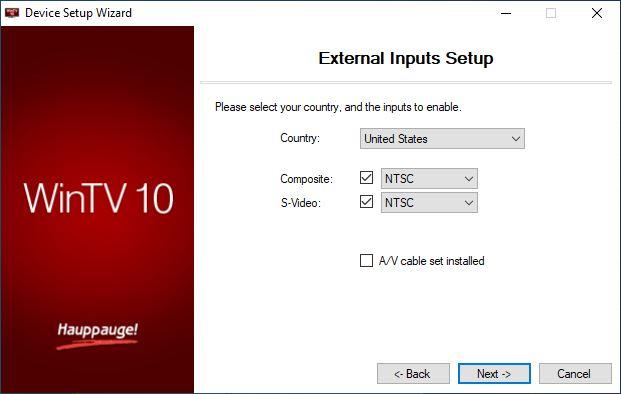
Country: Select the country.
Composite: Leave it check if you are using Composite. AUTO Selects the appropriate type of signal format for current region.
S-Video: Leave it check if you are using S-Video. AUTO Selects the appropriate type of signal format for current region.
A/V Cable Set Installed: If checked you can a secondary video source to an internal auxiliary A/V adapter if available and installed.

Click Next to finish the configuration. This adds the selected video inputs as "Composite" or "S-Video" channels to the channel list.
A second set of "Composite 2" or "S-Video 2" will be added if A/V Cable Set Installed is used.
Selecting the Video Channel in the Channel List
To view the signal from your video source in the main WinTV window, select the corresponding "Composite" or "S-Video" entry from the channel list.
Channel Search for FM Radio Stations
This section refers to WinTV models with FM radio tuner.
Before scanning you should make sure that your FM radio antenna is connected to the 'FM' connector of your WinTV product.
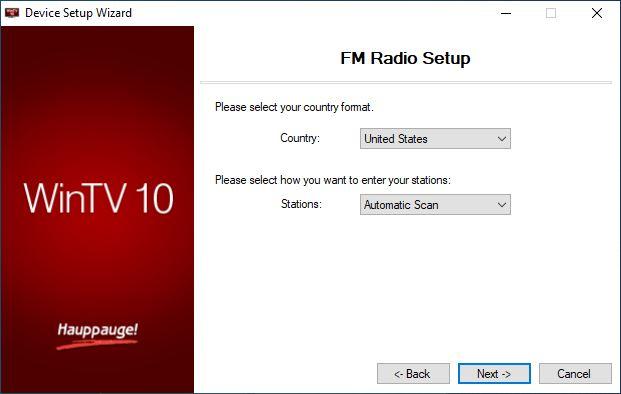
Country: Select your country.
Stations: Select between 'Automatic Scan' or 'Manual Entry'.
Click Next.
Automatic Scan
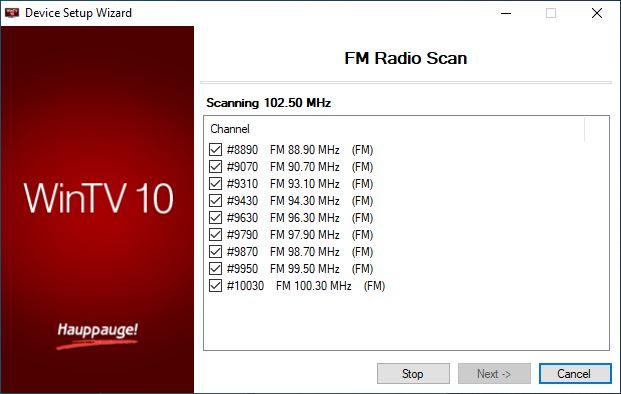
As FM radio channels are found, they will appear in the Channel box. When complete, click Next to save the channels to the database.
Manual Entry
If you know the local FM radio frequencies, you can also enter them manually.
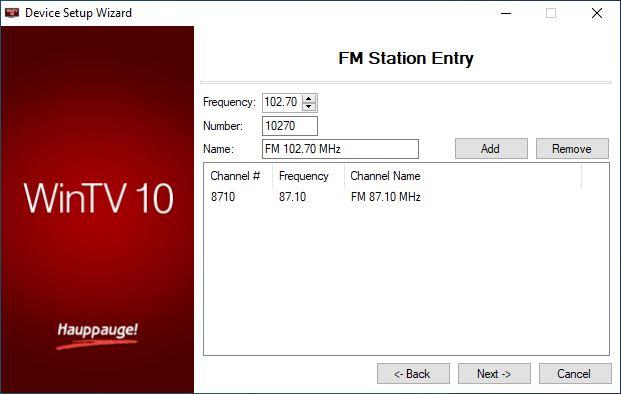
Enter the frequency into the field "Frequency". Alternative you can increase / decrease the frequency in 0.1 MHz steps using the arrows. You can also enter a name into the field "Name". Click on Add to add the station.
You can repeat this procedure with further frequencies.
When finished, click Next to save the channels to the database.
HD PVR 2 and Colossus 2
This section refers to HD PVR 2 and Colossus 2 setup with WinTV 10.
The following is the typical Device Setup Wizard for both the HD PVR 2 and Colossus 2.
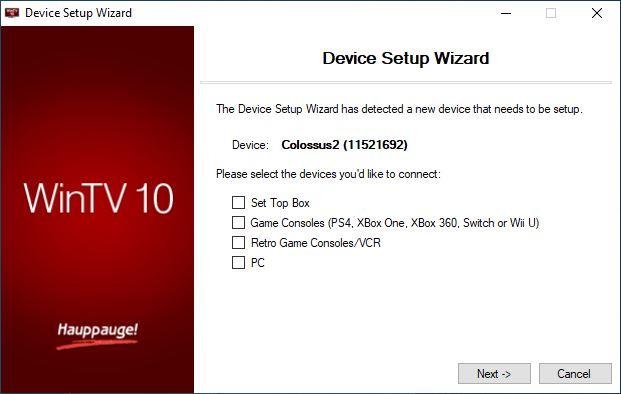
Below are brief explanations of each setup and what they are good for.
Set Top Box
If you have a cable box or satellite box you can select Set Top Box.
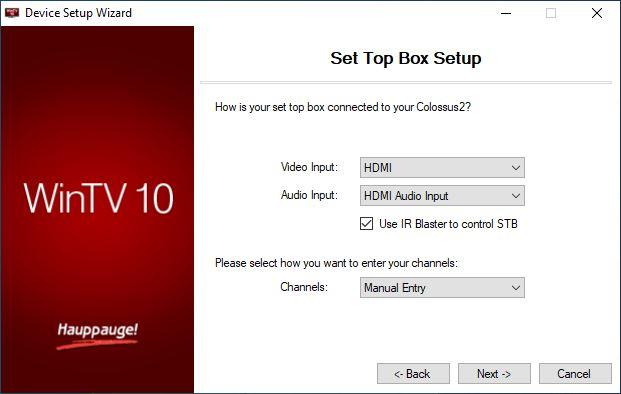
Video Input: Select between HDMI, Component, or Composite
Note that HDMI on most set top boxes is an encrypted signal and we won't be able to receive a signal. It is preffered that you use Component to get HD signals.
Audio Input: Select between HDMI Audio Input or RCA Audio.
Use IR Blaster to control STB: Check this if you wish to use the supplied IR Blaster to control channel changing.
Channels: Select between 'Manual Entry', ' Internet Lookup (USA only)', or 'Create Channel Range'.
Note: this option only available if Use IR blaster box is checked
More information available about these options under Analog TV via Set Top Box.
Game Console
Select Game Console if you have a PS4, Xbox One, Xbox 360, Nintendo Switch or Wii U.
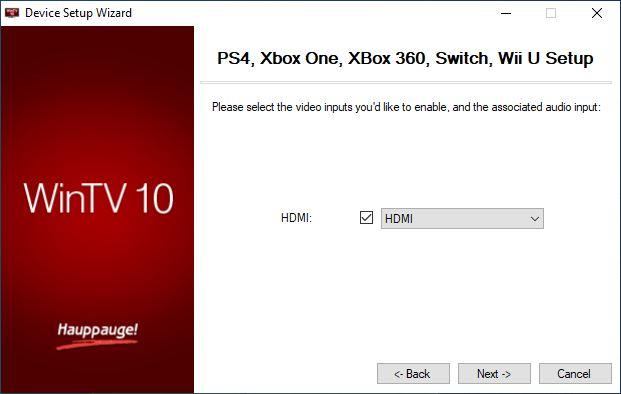
HDMI is the only option. The software will automatically add a channel for that source.
Retro Game Console/VCR
Select Retro Game Console/VCR for any older devices with no HDMI input.
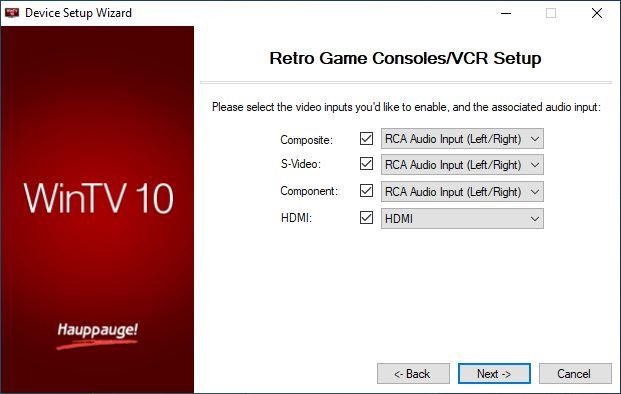
Please select the input that you want Composite, S-Video, Component, or HDMI. Also select the audio type. If you don't need an input, please uncheck it.
PC
Select PC if you want to capture from your computer
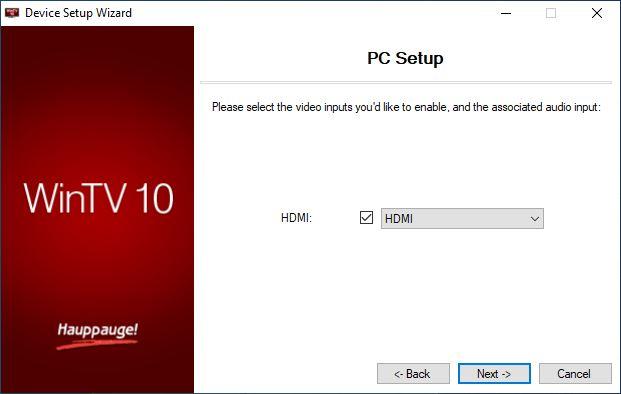
HDMI is the only option to capture from a computer. The software will automatically add a channel for that source.
Click Next on any of the windows to finish the setup.