Device Setup Wizard
The Device Setup Wizard will launch the first time you open WinTV 10.
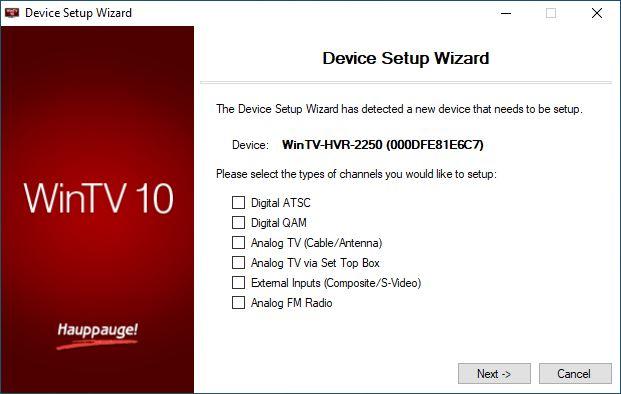
The available options are dependent on the WinTV product.
Digital ATSC - Digital terrestrial TV using an antenna (North America only)
Digital QAM - Digital cable TV (Clear QAM, North America only)
Analog TV (Antenna/Cable) - Analog TV over antenna or cable
Analog TV via Set Top Box - Analog TV using a cable or satellite box
External Inputs (Composite/S-Video) - For configuration of the analog video inputs
Analog FM Radio - Analog FM radio
You can select one or multiple selections if your product is capable of multiple inputs.
If you have a HD PVR 2 or Colossus device, please go to HD Capture Devices
If you need to re-run the Device Setup Wizard please go to the Devices menu in WinTV Settings.
Scanning for ATSC Channels (Digital over-the-air TV, North America)
This section refers to WinTV models with an ATSC tuner or hybrid NTSC/ATSC tuner.
Before scanning, you should make sure that your terrestrial antenna is connected to the TV tuner.
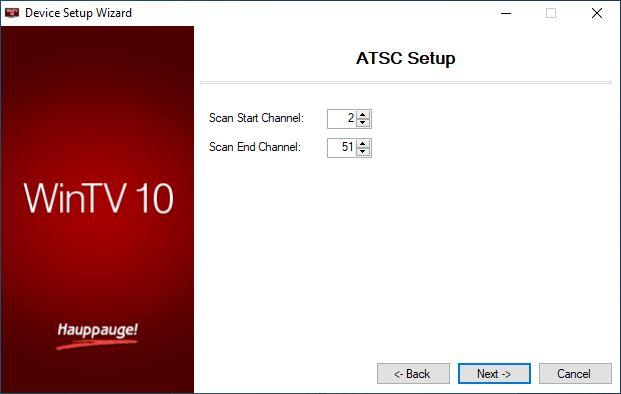
If you know the range of possible ATSC channels in your area, you can reduce the scanning time by editing the fields "Scan Start Channel" and "Scan End Channel".
Click Next to start the channel search.
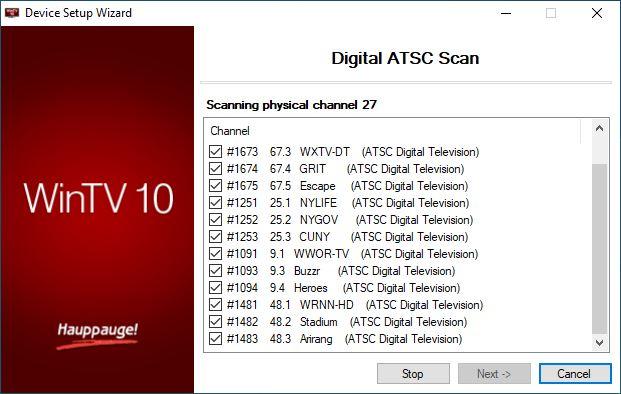
As TV channels are found, they will appear in the Channel box. When complete, click Next to save the channels to the database.
In case not all channels are found, you can try the following and rescan for channels:
-
If you are using an indoor antenna, position it near to a window. Use a signal reception map to find the best location. www.dtv.gov
-
Use an antenna signal booster.
Scanning for Clear QAM Digital Cable TV Channels (North America)
This section refers to WinTV models with a digital cable (QAM) tuner.
Before scanning, you should make sure that your digital cable TV feed is connected to the TV tuner.
Clear QAM digital cable TV channels are those TV channels broadcast on a digital cable network which are unencrypted (‘free to view’).
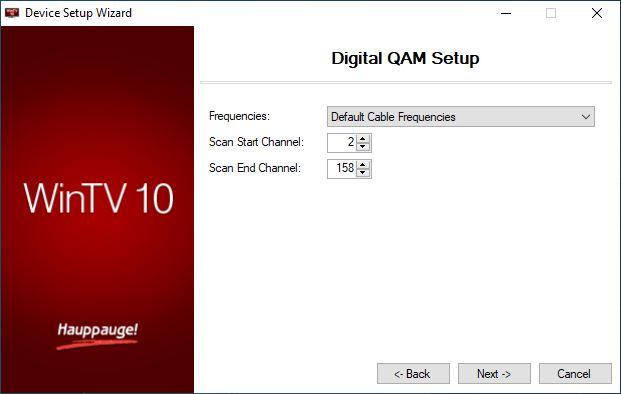
For most cable TV providers the "Frequencies" option should be set to "Default Cable Frequencies" (as is by default).
If you know the range of possible QAM channels at your location, you can reduce the scanning time by editing the fields "Scan Start Channel" and "Scan End Channel".
Click Next to start the channel search.
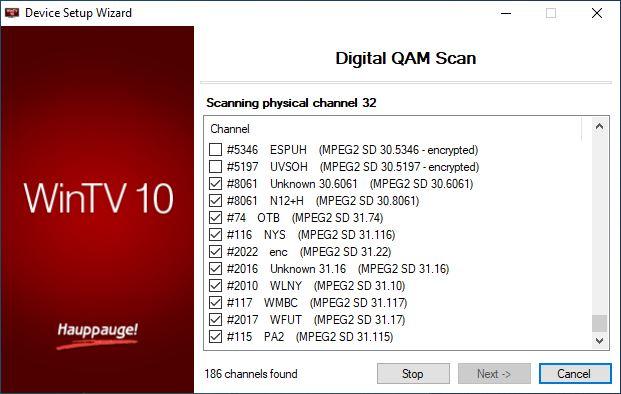
As TV channels are found, they will appear in the Channel box. QAM channels which are detected but are encrypted are automatically not selected.
When complete, click Next to save the channels to the database.
In case not all channels are found, you can try the following:
- From the "Frequencies" drop down list select "HRC Cable Frequencies" and rescan for channels.
Channel Scan for Analog TV (Cable or Antenna)
This section refers to products with a TV tuner for analog TV.
Before scanning you should make sure that the cable TV or the antenna is connected to the TV tuner.
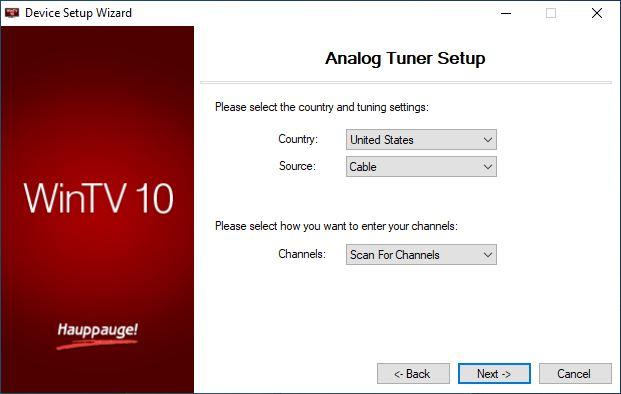
Please select the country and tuning settings
Country: Please specify the country
Source:
Cable if a cable TV feed is connected directly from the wall. You should also select Cable if you are connecting a set top box from your TV provider. This can be from cable company or satellite company.
Antenna you should only be selected if you know there is a specific analog signal in your area or personal modulator. Analog antenna signals have been turned off in North America for several years now.
Please select how you want to enter your channels
Channels:
Scan For Channels
Select scan for channels to automatically finds channels.
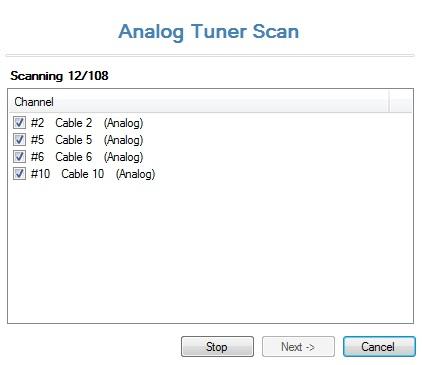
As TV channels are found, they will appear in the Channel box. When finished, click Next to save the channels to the database.
If you are using a set top box or dta box from a cable or satellite company, you need the broadcast channel. Normally this is Cable 3 or 4. Once found you can stop the scan and click next to finish the setup.
Manual Entry
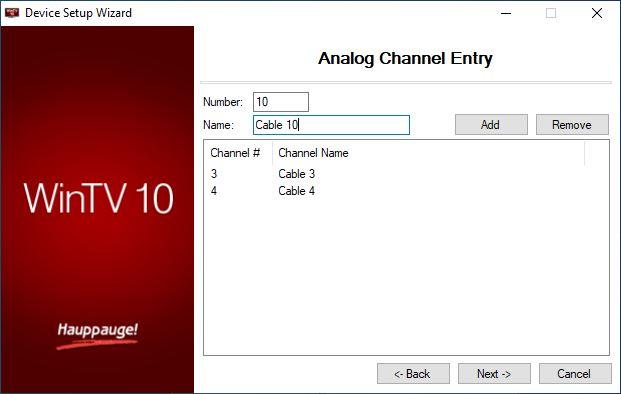
Select Manual Entry to manually enter analog channels. You can shorten the channel scan if you know the channel numbers for your local station.
Enter the channel number into the "Number" field, and a channel name into the "Name" field. Then click on Add. The channel is added to the list. You can repeat this procedure with other channels.
When done, click Next to save the channels to the database.
Channel Search for Analog TV via Set Top Box
This section refers to WinTV models with Set Top Box IR blaster support.
Before scanning you should make sure that your Set Top Box is connected to TV Tuner or A/V connector of your WinTV product.
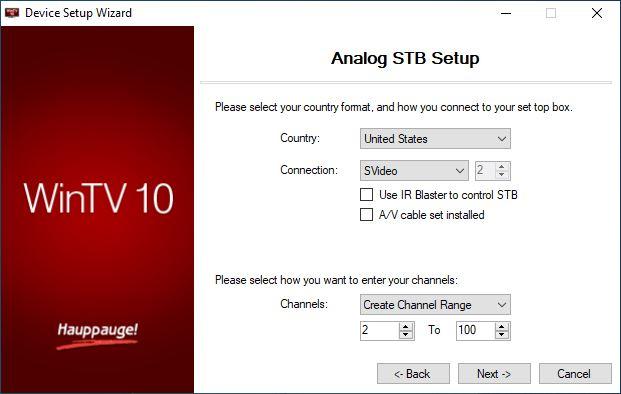
Country: Select your country.
Connection: Select the Set Top Box connection. Usually S-Video, Composite, or Tuner
If you select Tuner, you must select the incoming channel. Most common channels used are 3 or 4.
Use IR Blaster to control STB: Check this if you wish to use the supplied IR Blaster.
A/V cable set installed: Only available with internal products that have an auxiliary internal A/V connector.
Channels: Select between 'Manual Entry' or 'Create Channel Range'.
Click Next.
Create Channel Range
Useful when not in the USA. You can add a range of channels to match with your Set Top Box.
In this example channels 2-100 will be added. Click Next.
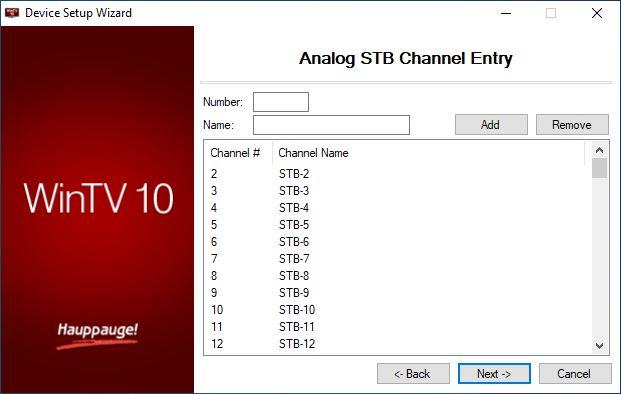
Channels will be added automatically, click Next to save the channels to the database.
Manual Entry
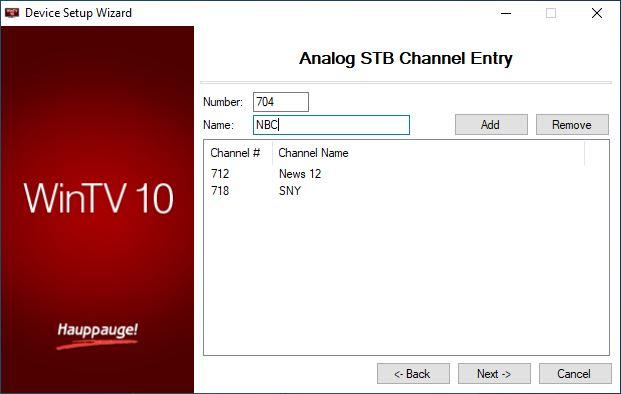
If you know the specific channels you want to add, add them manually. Type the number and name and click add. Click Next to save the channels to the database.